Tampilkan postingan dengan label security. Tampilkan semua postingan

Senin, 25 April 2016

Opera Browser Adds Free VPN Service

The Opera Browser has added a free VPN (virtual private network) service, built directly into their web browser.

Currently available on the Opera Developer Build, the VPN service provided by SurfEasy Inc. creates an encrypted tunnel from the users computer directly to the VPN server at the switch of a button. 

A VPN service is also used to shield a users real IP address allowing them to bypass firewalls, enhance privacy on public Wi-Fi, and access blocked content. Eg: region blocked content. 

Opera's free VPN can currently change your IP address's location to mimic either Canada, Germany, or the United States. 


How to Enable Free VPN Service in Opera Browser (Developer Build): 

1. Download and install the Opera Browser Developer Build. Then open the browser, if it doesn't automatically open. 

2. Click "Opera Developer" in the Mac Menu bar, and then click "Preferences."

3. Under the VPN heading, check on "Enable VPN". 

4. Now open a new tab and navigate to a website.     

5. In the address bar, click the VPN button, then switch it to on. Then select the country you wish to mimic the geo-location of. 


You can read more about the Opera Browser and the addition of the VPN service, on their blog


Rabu, 23 Maret 2016

How To Password Protect Notes in iOS 9.3 on iPhone or iPad

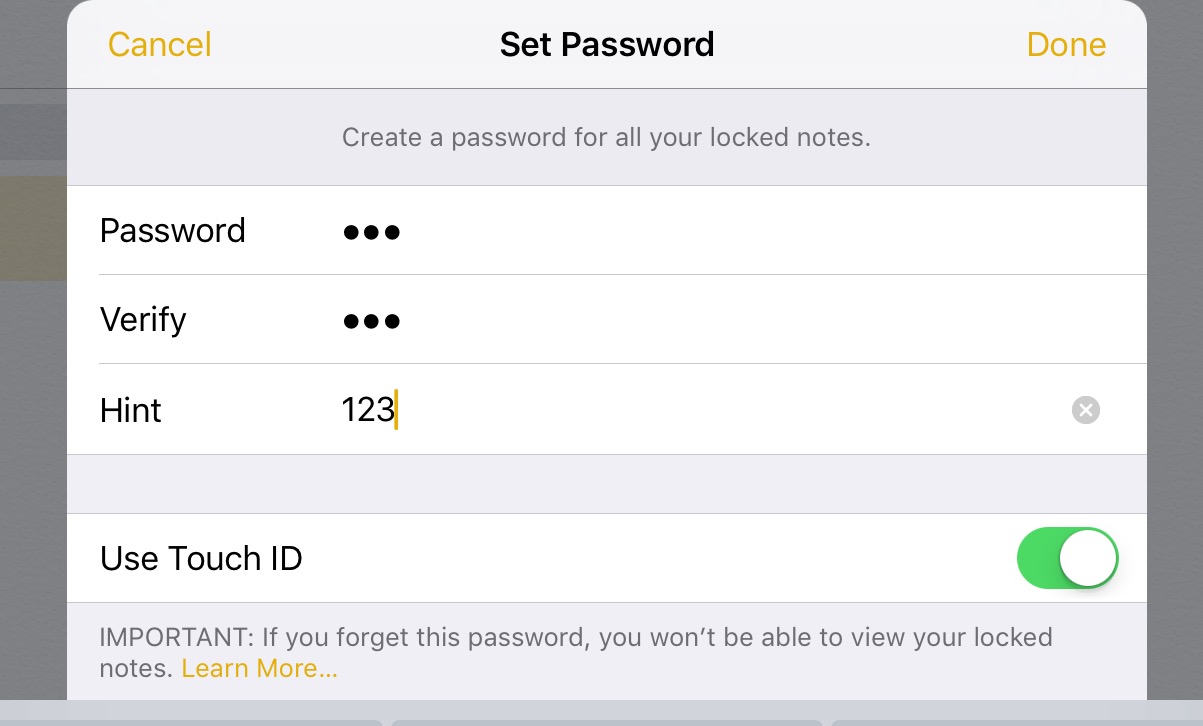
A new feature in iOS 9.3 is the ability to password protect your Notes. This password is not linked to your iOS passcode that you use to unlock your device, however you could always use the same pin I guess, if you're worried about forgetting the password. The password you set will be the same for all notes that you choose to lock. 

How To Password Protect Notes in iOS 9.3:

1. Open the Notes app. 

2. Create a new note, or find an existing one. 


3. Now, on the note you wish to lock, tap the Share button.

4. Now tap, "Lock Note."


5. Enter a password and choose whether or not to also allow Touch ID to unlock, and tap "Done". Important! if you forget the password - you will lose access to the note! 


6.  Now tap the lock symbol to lock the note. One thing to keep in mind is, the notes heading or first line will still be visible. 

7. To view a locked note, tap the note, then "View Note", and unlock.


8. To Remove a lock, tap the Share button, then "Remove Lock". 


How To Reset Your Notes Password in iOS 9.3:

1. Open Settings app.  

2. Tap "Notes."

3. Tap "Password".

4. If you remember the previous password, you can choose to "Change Password" or you can choose, "Reset Password". *Note: you can reset the password, however previous locked notes will remain locked with the previous password. 

5. To reset or remove password from future notes, tap "Reset Password." 

6. Enter you devices passcode. 

7. Confirm Reset.

8. If you don't want to set a new password, simple press "Cancel" on the 'Set Password' screen.


Selasa, 15 Maret 2016

I Side With Apple and Team Apple T-Shirts - Show Your Support For Security and Privacy!

The debate over encryption, right to privacy and security is a tricky one. On one hand - of course we all want our personal details, bank information, passwords, and other important and personal data kept safe and away from hackers. But we also want to stop the bad guys. But lowering our own security cannot be the way to do so. 

Whether it's on a phone, computer, or on one of Apple's apps, a third-party made app, to an app made in another country - if bad guys want to use encryption, they'll find a way. And creating 'a key for under the doormat' is only going to make technology more unsafe for the everyday person.   

If you side with Apple on this debate and want to show your support - check out these #iSideWithApple and #TeamApple t-shirts and hoodies available to buy now. 


Rabu, 03 Februari 2016

How To Solve [App Name] Can't Be Opened Because It Is From An Unidentified Developer - OS X Tip

Mac App Store icon
When trying to install a application on a Mac that you downloaded from the internet, you may run into a pop up message that says; "[App Name] can't be opened because it is from an unidentified developer." This is a security feature of OS X to prevent unwanted and possible malware software from installing onto your computer. 

It is always best to just download software from the Mac App Store or from identified developers. However, there is some occasions where you may want to install an application that isn't from the Mac App Store. But remember, by switching off this security measure, you are installing the app at your own risk. So, only install apps from sources and developers that you trust!

To install an application that isn't from a identified developer or from the Mac App Store, you'll need to:

1. Open System Preferences.

2. Then click Security & Privacy.

3. Press the lock in the bottom left corner and enter your password so you can make changes.

4. Then under the heading "Allow apps downloaded from", choose the option "Anywhere".

You can now install the application. After installing the app, it'd be best to head back into Security & Privacy and changing the option back to either only Mac App Store or Mac App Store and identified developers.  


Sabtu, 14 November 2015

Download Free iOS Apps Without Having To Enter Your Password - iOS 9 Tip


Isn't annoying when you are trying to download an app for your iPhone or iPad from the App Store and you get prompted to enter your password?! Well, did you know you can actually switch off this requirement for free app downloads?! But there is a small catch. To make this option show, you have to switch off 'Use Touch ID for iTunes & App Store'. So it's convenient if you are downloading mostly free apps.

How to download free apps without needing to enter your password on the iOS App Store:

1. Open 'Settings'.

2. Tap 'Touch ID & Passcode'.

3. Under the heading 'Use Touch ID For', switch off 'iTunes & App Store'.

4. Now back to Settings, tap, 'iTunes & App Store'.

5. Then tap 'Password Settings'.

6. Now, under the heading 'Free Downloads', switch off 'Require Password'.


Minggu, 20 September 2015

Malware in App Store Affects Millions of iOS Users

Chinese developers have disclosed that a malware has been found, called XcodeGhost, that has been affecting the App Store and putting millions of iOS users security at risk.

XcodeGhost is a iOS malware hidden inside a hacked version of Apple's free official Xcode program, which is used to create iOS and OS X apps.

XcodeGhost was used by Chinese developers who unknowingly downloaded the malicious program from a Chinese cloud file sharing site, instead of Apple's own App Store - presumably because it gave them quicker download speeds than Apple's severs in China.

The apps created with XcodeGhost made it through Apple's review process and were available on the App Store for millions of iOS users to download.

The apps affected with this malware can collect information about the users iOS device, but more importantly, could: phish users login credentials with fake dialog screens, hijack opening of URL's, read and write into the users clipboard - which means anything copied - like passwords.

U.S. Cyber security firm, Palo Alto Networks, have published details about this XcodeGhost malware, including all the affected apps which include: WeChat, NetEase, CamScanner, OPlayer, WinZip, Musical.ly, PDFReader, MobileTicket, PocketScanner, InstaFollower, WeLoop, SaveSnap, CamCard, and many more.

This malware has potentially affected over 500 million iOS users for all around the world. If you think you have been affected, or have used any of these apps - you should immediately uninstall the apps (see list here) - or update to a patched version. You should also change your iCloud and iTunes account passwords, and any other apps or website passwords that have ever been entered or copied onto your iOS device.

Selasa, 11 Agustus 2015

LastPass Announces New Free On Any One Type Of Device Option


LastPass is a great and useful password manager. It protects all your complicated login info (and more) behind one master password - which of course allows you to have hard to guess, complex, and different passwords for all the sites you use (and other things).

Before hand, you could use LastPass on desktop computers for free, but if you wanted to sync that data to a smartphone, you'd need to upgrade to LastPass Premium for $12 per year.

Today, LastPass has announced a new free way to use the service - for new members. Now, you can have LastPass free on any one type of device (Desktop, Mobile, or Tablet) and sync to any of the same - for free.

We want to ensure that LastPass is accessible for all users, including mobile-only users who need help managing their passwords and apps. Wherever you get started, you can use LastPass on that device, and any others of the same device type – desktops, smartphones, or tablets – for free!

Confused? It's actually simple. Say you sign up on Desktop. You can now sync across any Desktop computers and use LastPass for free. Or you pick Mobile (like a iPhone), then you can sync with any other mobile device, but not Desktop or Tablet. Third option, you choose Tablet (like an iPad), you can sync with any other tablet, but not Mobile or Desktop. Get it? Hope so.

If you then want to sync with other devices like mobile and desktop (or all three) you'd need to sign up to LastPass Premium. There is also a free 14-day trial of LastPass Premium.

You may ask, why is this useful? I don't have more than one mobile to sync with? That may be true - however in the past - you could not use LastPass on mobiles or tablet devices for free. Now, if you use say, only a mobile and don't need your data on one of the other two options, you can - for free!

>> You can read more about the new LastPass Free option on their blog


Kamis, 08 Mei 2014

Download iOS Password Manager 'OneKey Pro' FREE For A Limited Time


It's best to have strong unique passwords. And the best way to do this is with a password manager. Because if you can remember all your passwords, they are probably not safe. And writing them down, is not a good idea either.

If you don't yet have a password manager, here is a good chance to download one, and for FREE.

The password manager OneKey Pro by Appxy has gone free for a limited time. A saving of $4.99.

One Key Pro, features; 256bit AES encryption to keep your passwords safe. Ability to store all sorts of private info like; passwords, usernames, PINs, credit cards and bank info. Backup and restore options through Dropbox or Wi-Fi. [see full feature list here]

OneKey Pro is designed for iOS (iPhone/iPad). Usually at the price of $4.99, but currently on sale (FREE) for a limited time. Download OneKey Pro now from the iTunes App Store.

OneKey Pro iTunes App Store Link

Senin, 14 April 2014

How To Set Up & Use Password Manager - LastPass (via TWIT)

If you take your online security seriously, which you should! You'll want very good passwords protecting your internet information.  Re-using passwords from site to site, is not a good idea because if one password is compromised, all your logins are compromised.  Also if you are using passwords like 123456 or password, you're also unsafe.

But how do you remember all these different passwords... Not by writing them down on paper! The best way is to use a good, secure password manager.

There are two great password managers I'd recommend. 1Password, and LastPass. They both work across multiple platforms.  You can find more information about 1Password here. And LastPass on their website.

I wanted to share this video to you all from TWiT.TV. It's a special with tech expert Leo Laporte, who shows you how to download and set up LastPass.  It's a must watch, and it's a great introduction to the password manager and all it's great features.   


Minggu, 02 Maret 2014

How To Fix: "Google Safe Browsing Service is Unavailable" Error in Safari - Mac Tip

If you look in your Security settings in Safari on your Mac computer, and see a warning that says, "The Google Safe Browsing Service is unavailable."  You'd probably feel a little concerned. This feature is apart of the Fraudulent sites protection in Safari. The list is provided by Google. 

I'm not sure why Safari gets this error, but it seems to be a problem with the database file, and there's a fix you can do, to get the Google Safe Browsing Service updated and working again. 

The culprit is the SafeBrowsing.db file. If you delete the database, Safari will reset the file. 


How To Fix: "Google Safe Browsing Service is Unavailable" Error in Safari 

1. On the Finder Menubar, click "Go".
2. Then click, "Go to Folder..."
3. Type in: /private/var/folders 
4. There will be a few folders, open them up and look for a folder with com.apple files.
5. Find, and open the folder named, com.apple.Safari. 
6. In this folder, there should be a file named, SafeBrowsing.db.
7. Send the SafeBrowsing.db file to the Trash. This will force Safari to rebuild the file. 
8. This should fix the problem. But check back again, a few days later, and see if there are no more errors. *Note, the file doesn't seem to be updated every day. 


Jumat, 31 Januari 2014

How To Set a Passcode on Your iPhone That Would Take Over 10 Centuries To Guess!


Passcode's on your iPhone or iPad (or any computer device) is a must these days. Passcode's not only keep out unwanted prying eyes, but they can also stop thieves from accessing your data.

The most typical type of Passcode's are four-digit pins. Even if you have an iPhone 5s, the pin is still required, and can override your fingerprint.

Now for most of us, four digits is the great middle ground between, security and convince. But! Four digit pins are also the easiest to crack. Just imagine, while there are a lot of combinations to guess, it would only take a brute force computer about 11 seconds to crack, guessing at about one thousand guesses per second.

So what if you want a more secure passcode? There is that option available in iOS. And you could create a passcode that could take more than a century to crack!* To do this, you'll need a passcode that uses the iOS keyboard instead of the number pad.


To set a longer passcode, that uses the full iOS keyboard:

1. Open Settings.
2. Tap General.
3. Then Passcode Lock.
4. Switch off Simple Passcode.
5. You can now choose a Passcode, using the full keyboard.


So what is this awesome passcode? Here's it is! An example of a passcode that would take 18 centuries to brute force*:

1*)-b10-%NQ
(don't use this password...)

*(Assuming the guessing rate was at one hundred billion guesses per second).

If we examine this, the key to a strong passcode (or password) is randomness. No names, or words, or mix of the two. You ideally want a password that is a mix between: letters, numbers, and special characters, that makes no sense, with the length of at least 11 characters.

GRC's Password Haystack website has a great tool where you can test your own passcode's or passwords, and see how long it would take for them to be brute forced.

As long as your hackers couldn't access your iDevice in some other way, like through some secret back-door program, it would be almost impossible for them to use brute force to guess your passcode.

But, hey, let's be honest. Unless your some top secret spy, a Passcode that long, and difficult to enter every time you want to unlock your iOS device, is way too over the top! (and what if you forget it!) But you can still make your Passcode a little more difficult to guess, while still having the code convenient.

All you need to do is make a short password (5+ characters) using a combination of, letters / symbols / numbers together, or even just 5+ numbers. While the numbers won't stand up against a brute forcing computer, it can stop other people. That is, as long as your Passcode isn't, 1-2-3-4-5-6...


Kamis, 07 Februari 2013

iOS Security And How To Set A Passcode

A passcode on your iPhone, iPad or even iPod touch is a important feature that will keep your data secure.

There are some issues with iOS that I'd like to point out as well that I hope Apple can fix. If you lose, say your iPhone, and have a passcode set, anyone who finds your phone can't steal your phone by simply switching off 'Find iPhone' in iCloud. But they can switch off your phone without typing in the pin. So that's one set back, that would be easily fixed by simple making it that you have to type in the pin before switching off the phone.


Now how to set a Passcode: 

- Go to 'General' in the iOS 'Setting' app.

- Scroll down to 'Passcode Lock'.

- Now there is also an option below to use 'Simple Passcode'. This is a passcode with just the number pad. If you switch this off, you'll have access to the whole available keyboard.

- Press 'Turn Passcode On'

- And enter your desired pin.

- Your pin is now set! I hope you set it to something you'll remember!

- There are also other options in Passcode Lock.


- Allow Access When Locked; lets you choose whether you can use Siri, Passbook or even reply to a message without entering the pin.

- Erase Data: To really protect your data, you can have your device kind of self destruct! After 10 failed passcode attempts your device will erase itself. While great for security reasons, not a good idea if your don't back up to iTunes or use iCloud to back up all your data every night at least. So be wary before switching this one on.     
.