Selasa, 29 Maret 2016

New Instagram App Update Removes Log Out Button

A new Instagram update has appeared in the App Store, version 7.19 on iOS. While the notes added with the update just talk about the previous added feature of video views, others fear that this update includes much worse - the dreaded new algorithm newsfeed that'll change your timeline from being chronological to what Instagram thinks you'll like best. Pretty much the same crap that Facebook does. 

While personally, I haven't seen the new algorithm take effect, there are some other noteworthy things about this Instagram update. 

Let's start with the good. Instagram has added a new line under usernames of those you don't follow in following and follower lists that'll tell you if anyone you know also follows this person. That a feature that can come in handy. 

Now onto the bad. This update could include the new algorithm, I'm not quite certain. Let me know in the comments if you've already seen the changes take effect. Although Instagram probably doesn't need an app update to change this. But here are some other reasons why you might not want to update so quickly.

It seems users are stuck logged in to their accounts! That's right, once you login and add an account, you can't log out without deleting the entire app off your device. You might say, 'but why would you want to log out?', yeah, true, but since Instagram has added the ability to have multiple accounts that are easily changeable from within the app, removing the log out button seems well let's just say, dumb. Also missing, along with the sign out of accounts buttons is the 'Clear search history' button. 

So, if you haven't already installed the latest Instagram update, maybe hold off for now?

UPDATE: The newest Instagram update (version 7.19.1) has fixed the issues mentioned in this post. 


Rabu, 23 Maret 2016

How To Password Protect Notes in iOS 9.3 on iPhone or iPad

A new feature in iOS 9.3 is the ability to password protect your Notes. This password is not linked to your iOS passcode that you use to unlock your device, however you could always use the same pin I guess, if you're worried about forgetting the password. The password you set will be the same for all notes that you choose to lock. 

How To Password Protect Notes in iOS 9.3:

1. Open the Notes app. 

2. Create a new note, or find an existing one. 


3. Now, on the note you wish to lock, tap the Share button.

4. Now tap, "Lock Note."


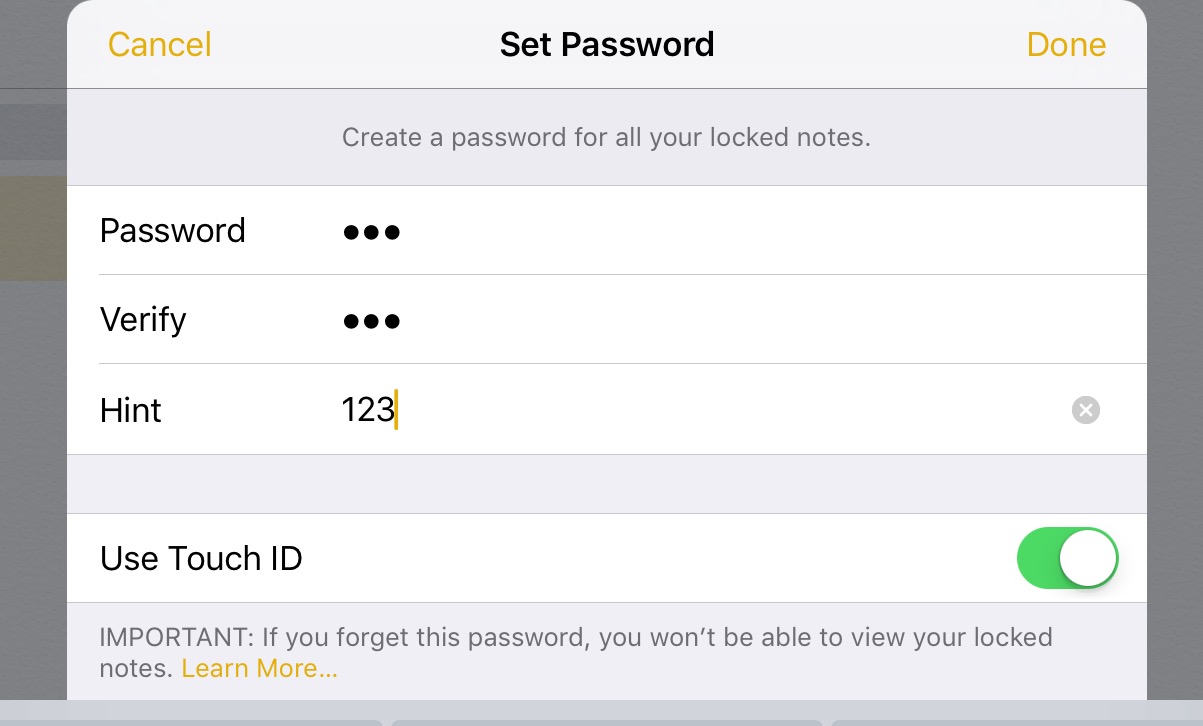
5. Enter a password and choose whether or not to also allow Touch ID to unlock, and tap "Done". Important! if you forget the password - you will lose access to the note! 


6.  Now tap the lock symbol to lock the note. One thing to keep in mind is, the notes heading or first line will still be visible. 

7. To view a locked note, tap the note, then "View Note", and unlock.


8. To Remove a lock, tap the Share button, then "Remove Lock". 


How To Reset Your Notes Password in iOS 9.3:

1. Open Settings app.  

2. Tap "Notes."

3. Tap "Password".

4. If you remember the previous password, you can choose to "Change Password" or you can choose, "Reset Password". *Note: you can reset the password, however previous locked notes will remain locked with the previous password. 

5. To reset or remove password from future notes, tap "Reset Password." 

6. Enter you devices passcode. 

7. Confirm Reset.

8. If you don't want to set a new password, simple press "Cancel" on the 'Set Password' screen.


How To Stop iOS OTA Update Once Started on iPhone or iPad

If you start an iOS over-the-air update, that is, a update straight from your iPhone or iPad, from Settings > Software Update, and then need to stop the update before it's done downloading - follow these steps: 

1. Open "Settings" app.  

2. Tap "General." 


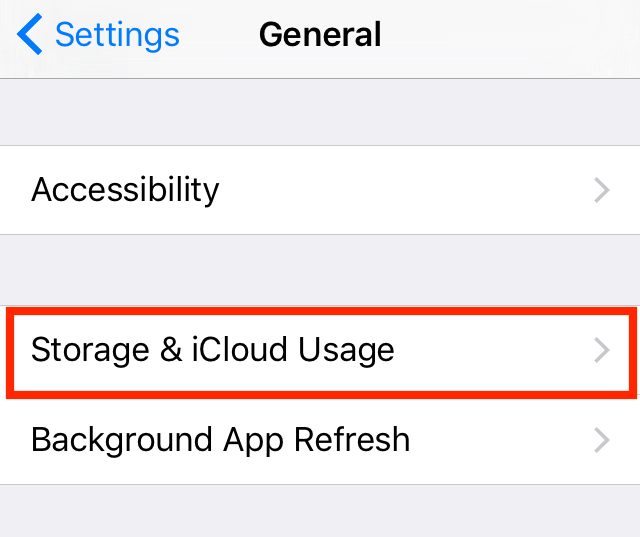
3. Tap "Storage & iCloud Usage." 


4. Under Storage heading, tap "Manage Storage."  


5. A list will populate. Find "iOS X.X" on the list, and tap on it. 


6. Now, tap "Delete Update", then again on the pop-up menu to confirm. 

7. To re-download the update, go back to Settings > General > Software Update.    


Best Ad-blocking Extension for Google Chrome or Firefox


Ads are annoying. Everyone hates them and for good reason. A lot of websites mistreat ads, they place them everywhere, they are intrusive, and often flashing, and telling you that you've won a price that you really haven't. And ads can even contain malware! There has been many cases where adware (or worse) has snuck into advertisement, even on major websites.  

Many people know of AdBlock Plus, but there's another great extension that may be even better!

uBlock Origin (unrelated to ublock.org) by gorhill; the founder and original author of uBlock, is a efficient ad blocker that is easy on your computers CPU and memory resources.

With all ready over 3 million users on Google Chrome, uBlock Origin is easy to use and comes pre-packed with the best filters including: EasyList, Peter Lowe’s Ad server list, EasyPrivacy and known Malware domains.

When compared to ABP, you can view a efficiency comparison, here.

uBlock Origin is free and open source with public license (GPLv3).

Wanna know more about uBlock Origin? Check out this podcast with security expert, Steve Gibson from TWiT.TV (about 1:21:50 into episode).


> View and Download uBlock Origin for Google Chrome

> View and Download uBlock Origin for Mozilla Firefox


Senin, 21 Maret 2016

What Apple Announced Today (March 21st Apple Event)

Apple held a Media Event today in Cupertino.  Here are my live key notes of what was announced!

For full details, be sure to check Apple.com

--

40 years in 40 seconds video plays. Apple turns 40 on April 1st 2016.

Tim Cook talks about privacy and encryption.

Lisa Jackson, head of environment on stage. Talks about Apple's goal to become 100% renewable. At the moment 93% of Apple offices run on renewable energy. Also talks about recycling and reusing iPhone's.

Health: Jeff Williams talks about ResearchKit.
Apple launching CareKit - available in April.

Apple Watch: Top selling smartwatch in the world. New Apple Watch bands! Woven Nylon. Apple Watch price drops to starting from $299.

Apple TV: Talk about apps. tvOS - update: folders, photo library & live photos,  dictation, Siri for App Store. tvOS 9.2 available today.

iPhone: New 4-inch. Called iPhone SE. Includes Rose Gold finish color option. Looks like iPhone 5s. A9 64-bit chip, M9 co-processor. Same CPU performance as iPhone 6s. 12-megapixel iSight Camera. Battery improvements. Includes features like Live Photos and Retina Flash. Capture 4K video. Touch ID. Price starts from $399 (16GB). Orders from March 24th - available March 31st.

iOS 9.3: new Night Shift color mode to make screen warmer looking which might make you sleep better at night. Notes: Passcode protect. Heath: app suggestions. Top stories in News. Apple Music in Car Play. iPad in the classroom improvements in iOS 9.3. iOS 9.3 available today!

iPad: Customers love the iPad Pro. New 9.7 inch iPad Pro! 40% less reflective. 25% brighter than iPad Air 2. 25% greater color saturation. True color tone display. 4-speakers. Twice volume of iPad Air 2. A9X 64-bit chip. M9 co-processor. Smart keyboard for 9.7 inch display. Pencil. Other accessories include: Lightning SD card reader, USB Camera reader. 12 megapixel iSight camera. 4K video recording. True tone flash on iPad! Live photos. Now also in Rose Gold. $599 for 32GB, $749 - 128GB, $899 - 256GB (New option) - Wi-Fi models. Order from March 24, ships on March 31.


Minggu, 20 Maret 2016

How To Watch Today's Apple Keynote Event Live!


Apple is holding a media event today (March 21st) at 10 a.m. PDT. 

It's been rumored that Apple will announce a new smaller size 4-inch-iPhone with the internals of an iPhone 6 or 6s. A new 9.7 inch iPad Pro. Possibly new Apple Watch bands, and possibly the release of iOS 9.3. 

Apple will live stream the event from their website and on Apple TV. Check Apple's Event page for more details. 


Kamis, 17 Maret 2016

Twitter Switches On New 'Best Tweets First' Algorithmic Timeline

Twitter Logo.
When it was announced, there was a out-roar from angry Twitter users who claimed that the new algorithmic timeline would be the end of Twitter. At first, the option was launch as an opt-in feature - but now, it seems that Twitter has switched on the new "best Tweets first" timeline for all users.

'Best Tweets first', is the Tweets that Twitter believes that you will care about the most and would likely engage with. When you login or open the app, these 'best Tweets' will be shown at the top of your timeline feed regardless of when they were posted.

For more detailed information about Twitter's timeline, click here.


How To Switch Off The New "Show me the best Tweets first" Algorithmic Timeline:

on iOS:

1. On your profile tab, tap the settings gear icon and select "Settings."

2. Select the account you want to change.

3. Under Timeline, tap "Timeline personalization."

4. Switch off "Show me the best Tweets first".


On Desktop / Laptop:

1. On the Twitter navigation bar, click your profile image, then select "Settings."

2. On The Account Settings page, scroll down to the Timeline under the Content heading.

3. Uncheck, "Show me the best Tweets first", then click "Save changes" and re-enter your password.